摘要
本文为自用的基于WPF的小工具箱已有功能的开发记录,新功能添加时会加入本文
文中提到的其它相关教程版权归各自作者所有
简述
小工具箱的界面如下,个人会将平日中常用的一些功能不断加入其中。
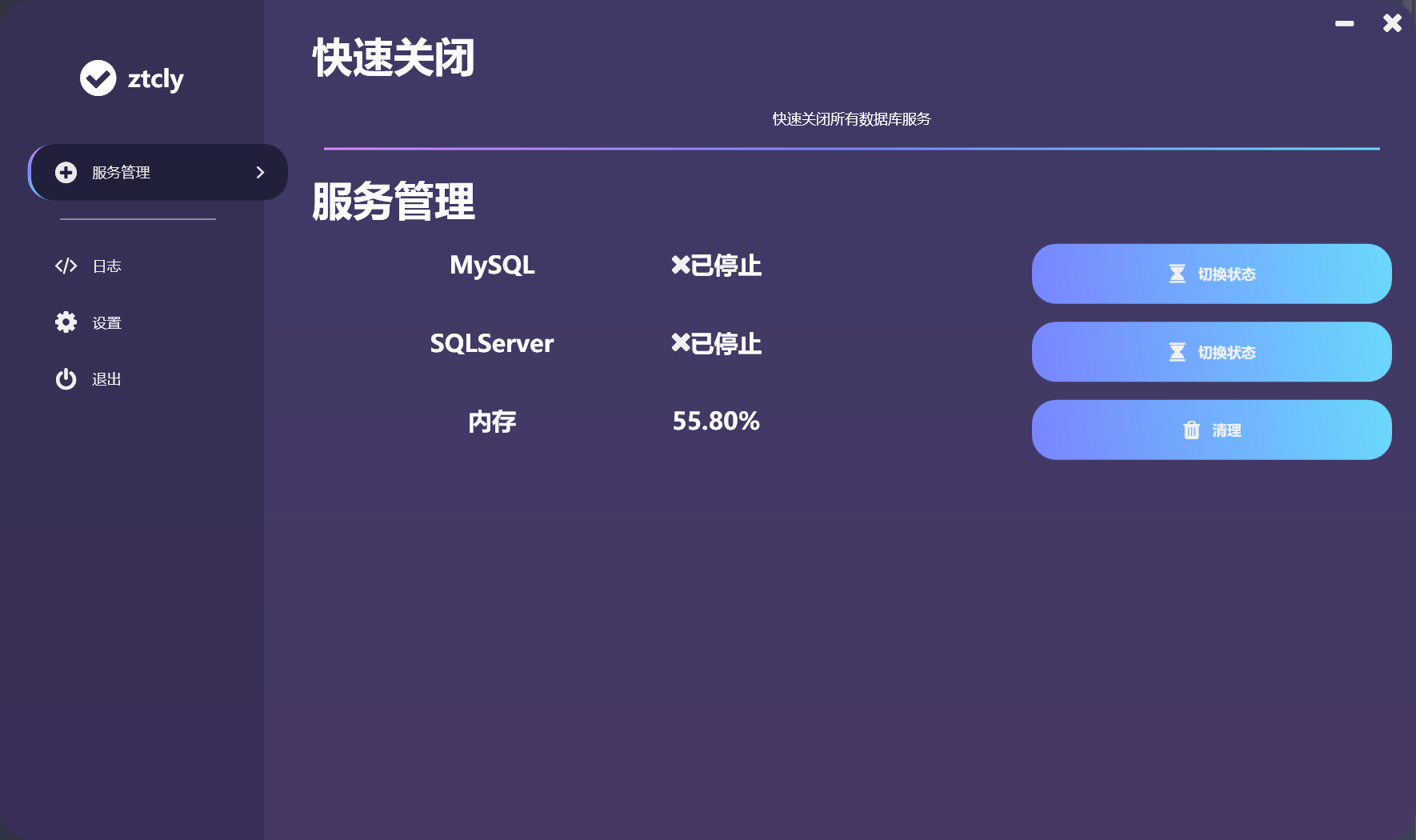
目前小工具箱从功能层面,仅实现了所需系统服务的状态切换、内存的清理。而从整体层面则实现了日志的记录、设置的调整与保存、消息通知等功能。
实现
界面
界面选择
小工具箱采用了WPF。这里选择WPF原因有三:
1.这个工具箱只是方便自己工作生活的自用小工具,无需在界面上花费过多时间。可以快速简单ctrl CV过来最好。
2.考虑平日的工作和生活,以及日后有需求可能复用框架编写其它程序分发给认识的其他人,基本确定只需要在Windows10、11上运行即可。
3.日后的工作中,有再使用到WPF的可能。
综上,我最终选择WPF并在网上找到了WPF-Dark-Wallet-Payment项目作为界面的显示。
WPF
新建项目
新建的项目主要含有两部分,App.xmal(.cs)和MainWindow.xaml(.cs),即应用的进程与主窗体。
在编写时,App.xmal被用于容纳WPF-Dark-Wallet-Payment项目为整个应用各种控件定义的Style。其效果类似于Web的.css文件
MainWindow.xaml则定义主窗体信息。
<Window>标签如下所示:
1
2
3
4
5
6
7
8
9
10
11
12
13
14
15
16
| <Window x:Class="ztcly.UI.MainWindow"
xmlns="http://schemas.microsoft.com/winfx/2006/xaml/presentation"
xmlns:x="http://schemas.microsoft.com/winfx/2006/xaml"
xmlns:d="http://schemas.microsoft.com/expression/blend/2008"
xmlns:mc="http://schemas.openxmlformats.org/markup-compatibility/2006"
xmlns:fa="http://schemas.fontawesome.io/icons/"
mc:Ignorable="d"
WindowStartupLocation="CenterScreen"
WindowStyle="None"
AllowsTransparency="True"
Background="Transparent"
ContentRendered="MainWindow_OnContentRendered"
Height="700"
Width="1180"
Closing="MainWindow_OnClosing"
>
|
x:Class特性告诉XAML编译器将编译结果和哪个C#编译的类合并
<Window>标签中,使用到的一些属性如下:
| 属性名称 |
属性解释 |
取值 |
取值解释 |
| WindowStartupLocation |
窗口首次启动位置 |
CenterScreen |
屏幕中心 |
| AllowsTransparency |
允许工作区是否为透明 |
True |
允许 |
| Background |
获取或设置一个用于描述控件背景的画笔 |
Transparent |
|
| WindowStyle |
获取或设置窗口的边框样式 |
None |
|
<Window>标签中,使用到的一些事件如下:
| 事件名称 |
事件解释 |
| Closing |
在调用 Close() 之后立即发生,并且可进行处理以取消关闭窗口 |
| ContentRendered |
在窗口的内容呈现完毕之后发生 |
属性:见微软文档Window 类
布局与嵌套
首页的功能排布使用Grid嵌套实现
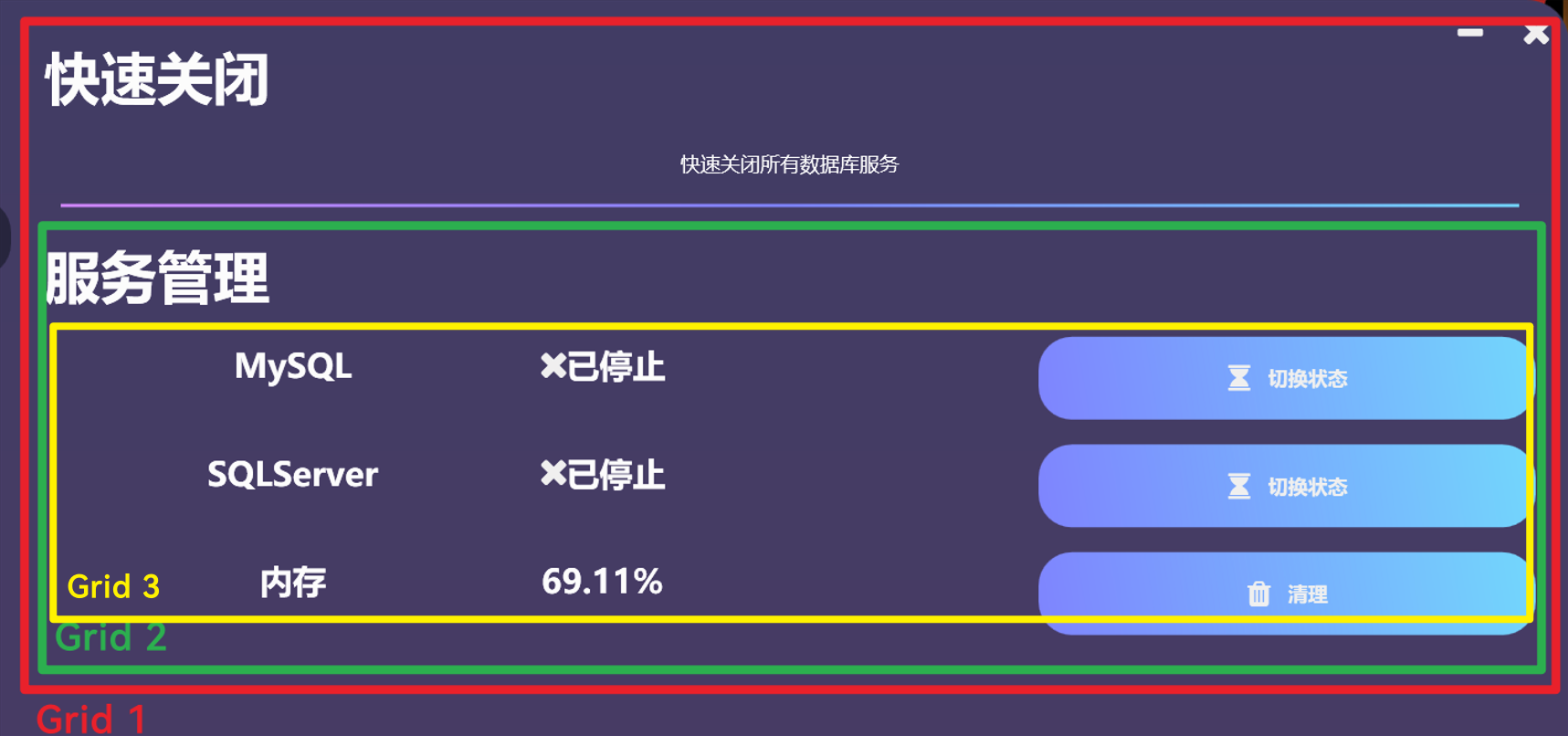
以最外层的Grid为例,结构大概如下:
1
2
3
4
5
6
7
8
9
10
11
12
13
14
| <Grid>
//Grid被分为两行。如图,第一行为“快速关闭”菜单内容,第二行为“服务管理”菜单内容
<Grid.RowDefinitions>
<RowDefinition Height="Auto"></RowDefinition>
<RowDefinition Height="Auto"></RowDefinition>
</Grid.RowDefinitions>
<Grid Grid.Row="0">
//第一行内容
</Grid>
<Grid Grid.Row="1">
//第二行内容,这里根据控件摆放的需求,这一行内里有更多的Grid
</Grid>
|
Grid类相关介绍见微软文档Grid类(System.Windows.Controls)
功能界面切换
界面左侧为功能选择列表,右侧为功能的实际界面。功能界面的切换使用<Frame>控件。
在xaml文件中定义Frame:
1
| <Frame Grid.Column="1" Name="function" NavigationUIVisibility="Hidden" ></Frame>
|
定义各个界面的Uri:
1
2
| allViews.Add("Log",new Uri("Log.xaml",UriKind.Relative));
allViews.Add("Settings",new Uri("Setting.xaml",UriKind.Relative));
|
切换界面由按钮触发:
1
2
3
4
5
6
7
8
9
10
11
| private void Log_OnClick(object sender, RoutedEventArgs e)
{
function.Navigate(allViews["Log"]);
ChangeButtonStatus(Log);
LogProcess.Debug("切换至日志界面",ZMSFunction.MainWindow);
e.Handled = true;
}
|
服务管理
对Windows系统服务的操作,使用System.ServiceProcess.ServiceController的Nuget包。
ServiceController的调用如下:
1
2
3
4
5
6
7
8
9
10
11
12
13
14
15
16
17
|
string serviceName = "MSSQLSERVER";
ServiceController sc = new ServiceController(serviceName);
sc.Refresh();
ServiceControllerStatus status = sc.Status;
service.Start();
service.WaitForStatus(ServiceControllerStatus.Running);
service.Stop();
service.WaitForStatus(ServiceControllerStatus.Stopped);
|
其中,服务的状态以ServiceControllerStatus枚举表示
1
2
3
4
5
6
7
8
9
10
11
12
13
14
15
16
17
| public enum ServiceControllerStatus
{
Stopped = 1,
StartPending = 2,
StopPending = 3,
Running = 4,
ContinuePending = 5,
PausePending = 6,
Paused = 7,
}
|
服务的名称可由Windows的“服务”菜单获取。按下Windows + R打开“运行”界面键入services.msc 最后回车Enter↵以打开“服务”界面。
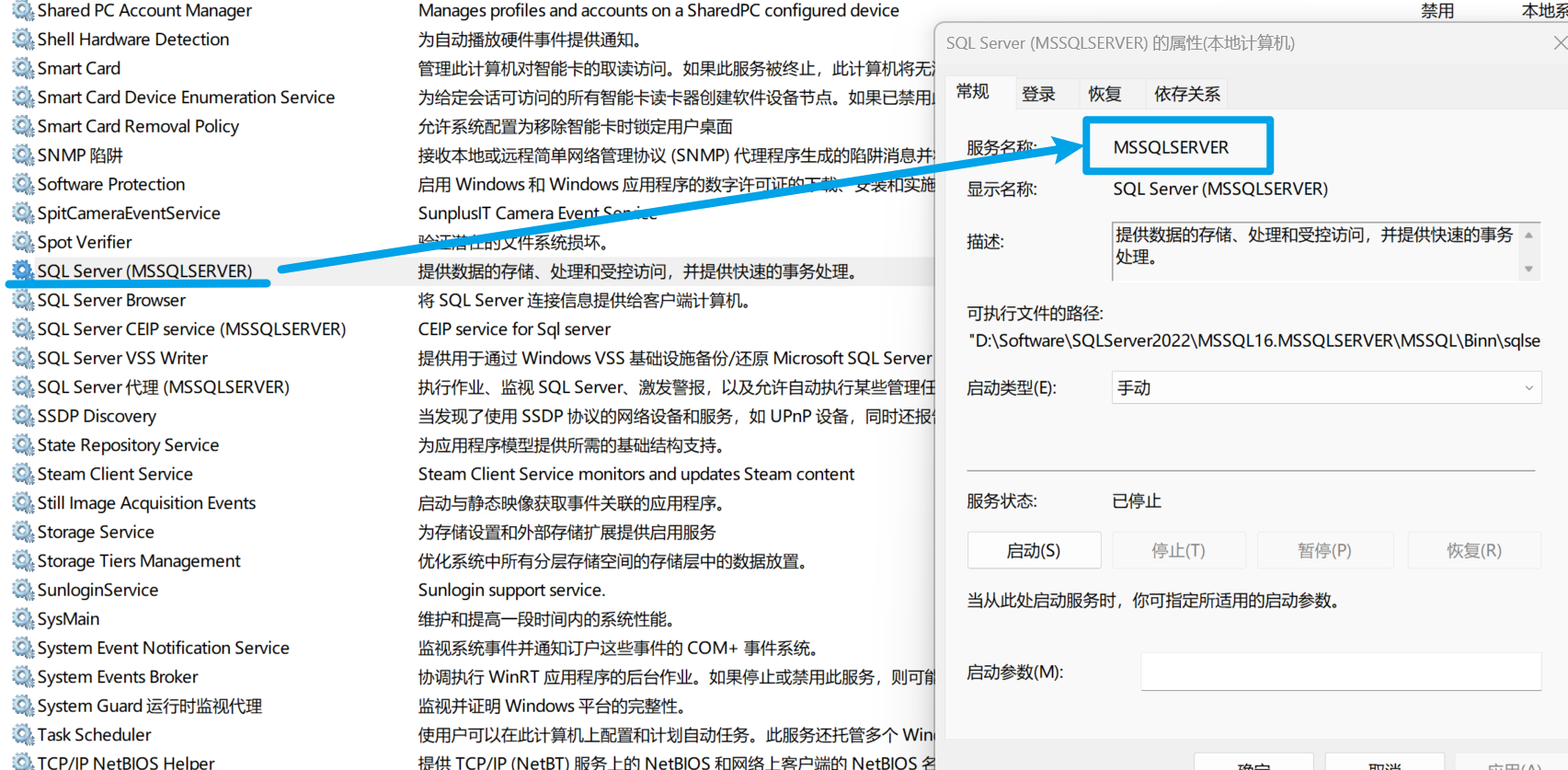
如图,服务的“服务名称”即为获取控制器所需要的字段。